AirPort wireless connection Drops on Leopard 10.5.2

Apple AirPort Wireless Logo

Symptoms

  • AirPort wireless connection randomly stops working, even though signal strength to base station is good.
  • Wireless connection strength drops, clicking on AirPort starts scanning, wireless strength returns to full, but Internet connection is lost.
  • Can’t create wireless connection to DLink DIR-625 wireless router after upgrading to 10.5.2.

Possible Causes

  • AirPort attempts to connect to stronger “Recent networks” listed in preferences file /Library/Preferences/SystemConfiguration/com.apple.airport.preferences.plist
  • Apple has updated its AirPort wireless connectivity to a more recent draft of the “wireless n” proposed standard. This is a faster version of wifi than the previous 802.11 wireless g, b, and a standards. (References: Wikipedia 802.11, Discussions at Apple.com).
  • [Added 080618]: AirPort is finding neighboring wireless router base stations on the current wifi channel and is attempting to connect to them. (References: Gedblog, TUAW.com)
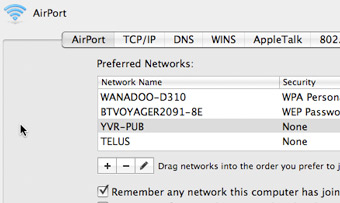
  • [Added 060824]: AirPort attempts to connect to based stations listed in “Preferred networks”, listed in System Preferences => Network => Advanced => AirPort => Preferred Networks. See the fix for AirPort Preferred Networks problem.

Diagnostics

Fixes/Solutions/Workarounds

Please, before implementing any of these fixes, try them one at a time and wait to see if there is any improvement in the situation before trying the next. Keep track of which fixes you have tried and report back when one of them (or none of them) in particular solved your problem so that we know which solutions are useful and which are less likely to help, thus moving forward in our knowledge of how to diagnose and fix wireless dropouts on Apple AirPort connections. Many thanks. ~ Ben.

  • Backup /Library/Preferences/SystemConfiguration/com.apple.airport.preferences.plist file, then delete it. Reboot. Leopard will create a new AirPort preferences file with a single entry with your current wireless base station.
  • For D-Link DIR-625 wireless router (from discussions.apple.com):
    1. Within Setup => Advanced => Advanced Wireless, change RTS Threshold to 2306
    2. Change Fragmentation Threshold to 2306
    3. Use “Mixed 802.11n, 802.11g, and 802.11b” within Setup => Wireless Settings
  • [Added 080618]: Change wireless channel on your wifi router (e.g. AirPort Extreme base station, NetGear, Linksys) from 6 (the default) to anything from 1-4 or 8 to 11. Please refer to your router’s instruction manual on how to do this. The reason for avoiding channels 5 and 7 is that wifi routers by design will automatically switch to one channel above or below their current channel when wifi signal noise passes a certain value. Thus, if you were having problems on channel 6, your router and AirPort have already tried channels 5 and 7 and you’re still experiencing problems.
  • [Added 080618]: If possible, use the 5Ghz transmission frequency/band for your wireless router. Most wireless devices (nearly all wireless routers and cordless telephones) in homes use the 2.4Ghz transmission band. Avoiding this band will result in much less radio noise. Again, this is a setting on your wireless access point rather than on your Mac. Please refer to your wireless base station’s instructions on how to change radio frequency (if possible).
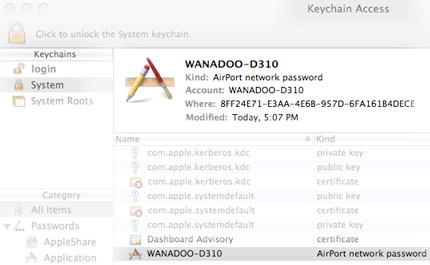
  • [Added 080618]: Keychain Access is an Apple program that saves passwords to websites, to your Mac itself, to wireless base stations, etc. The keychain entries related to wireless base stations is a potential cause of wireless drops in Leopard 10.5.2 with the theory being that Keychain Access was modified in this release, breaking (somewhat) keychain items created in older versions (10.5.1 and prior). Deleting and recreating the keys in 10.5.2 and beyond may resolve this issue if you are affected.Launch Keychain Access within Finder: Applications => Utilities => Keychain Access. On the top left, select System, underneath login. Find the name of your wireless base station or router, often called an SSID in networking terms. For me it’s WANADOO-D310. Under the Kind column it should read AirPort network password. You may find multiple keychain entries for wireless base stations you’ve used in the past. We want to delete them all, but before doing that, save their passwords. You do this by right clicking on the item, for me WANADOO-D310, and choosing Copy Password to Clipboard. If you are asked to allow access to this item by kcproxy, click Allow.
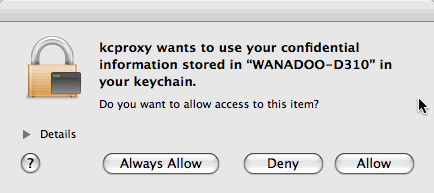
    Then create a new text file somewhere on your mac and paste the password that’s been copied to your clipboard. This will make it easier when you have to reconnect to this base station. You might want to note which base station/wireless router this password is related to while doing this. I did this by simply writing the name of the wireless router beside the password. After backing up the passwords, delete all the keychain items of kind AirPort network password. Now turn off the AirPort connection by clicking on the AirPort menu bar icon (looks like the image at the top of this post) and selecting Turn AirPort Off. Open System Preferences => Network. You’ll notice that Network Name select list will no longer have your base station listed. Click Turn AirPort On. AirPort will search for wireless networks (takes about 30 seconds) and will eventually pop up with a window saying None of your preferred networks are available, but you should see your wireless base station listed as one of the networks.
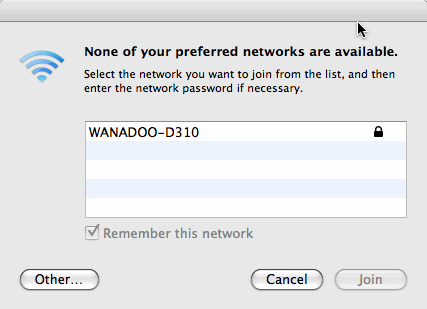
    Select your network and click Join. You’ll be asked for your password. Hopefully you remembered to save that password somewhere and can simply copy and paste it back in. (Use right click => Paste rather than Apple Key + V, which won’t work for this password field). After this you should be reconnected to your wifi base station. If you return to your Keychain Access window, you should once again see your base station listed with the System Keychains. You can close the Keychain Access and Network preferences pane windows. If you have multiple wireless networks that you use often, you’ll have to search and reconnect to them with the passwords you’ve saved. Hopefully the recreated keychain items will keep you connected.
  • [Added 080624]: Remove Preferred Networks. From within System Preferences => Network => Advanced => AirPort, using the minus button, remove all preferred networks except for the current wireless access point you’re connected to.
Background

Just after upgrading to 10.5.2 I noticed that once in a while my AirPort wireless connection would drop to 2 or 3 bars, then return to full signal strength, but I couldn’t access the Internet after that. There didn’t seem to be any pattern to these dropouts of wireless connection. No interference from neighboring base stations either. Yet everything was ultra stable with 10.5 and the only change I made was upgrading (finally) to 10.5.2.

After doing some research, I had a theory that AirPort was searching through old wireless connections within /Library/Preferences/SystemConfiguration/com.apple.airport.preferences.plist constantly looking for a better signal. And whenever the current wireless connection suffered from minor transient interference (say cordless telephones), it would immediately try to connect to another base station or try to switch to a different channel. Have a look at your version of the airport preferences file by navigating to it in Finder, starting with Macintosh HD, then Library, Preferences, and finally within the SystemConfiguration folder. You can simply hit enter with the file highlighted to use Quick Look. You can also use Terminal to quickly print the file to the screen with the following command: cat /Library/Preferences/SystemConfiguration/com.apple.airport.preferences.plist

Once the AirPort control software in 10.5.2 set about trying to find a better wireless connection, it would never successfully get back your original wireless connection which was really fine. Hence, from time to time, you would see a slight drop in wireless signal strength, then after clicking on the AirPort wireless icon, it would scan for networks for a few seconds, then return to full strength, yet you would have already lost Internet access.

The fix is simple:

  1. Drag the /Library/Preferences/SystemConfiguration/com.apple.airport.preferences.plist file to your desktop (as a backup),
  2. Delete the file within SystemConfiguration,
  3. Reboot and let Leopard create a new airport preferences file with only your current wireless connection listed within it.

With only one base station listed in “Recent Networks” within the file, AirPort won’t try scanning for other stronger networks and you’ll stay connected.

That’s the theory anyways. It’s worked for me so far. Hope it helps you too.

Leave a comment if you have questions or have tried the fix with success/failure.


Apple Online Store

Related posts:

  1. Wireless Encryption Protocols for Apple AirPort
  2. iPod Touch Wifi Password
  3. Slow Internet with Leopard

Tags: , , , , , , ,

I actually can’t even find this preferences file anywhere.
Suggestions?

Hi Tricia,

The directory /Library/Preferences/ is found within the “root” of your Macintosh HD, i.e. just “/”, not underneath your “home” directory which is actually /home/tricia for example.

When you open Finder, you’re automatically placed within your “home” directory. The directories underneath your “home” directory look nearly exactly the same as the “root” directory so it’s very confusing.

Double check that you’re clicking on the disk drive looking icon named Macintosh HD (usually the top drive) within Finder and navigating to /Library/Preferences/SystemConfiguration directory from there.

Ben

So far so good! Thank you! I will update if the slowdown starts happening again.

Hi Ben, Thanks for the suggestion - though it still hasnt made a difference! The /Library/Preferences/SystemConfiguration/com.apple.airport.preferences.plist is now cleaner and just contains my network, however when i click on the wireless signal strength in the top toolbar on my desktop it always shows the Airport Scanning icon… it never seems to stop scanning? I assume this is why it kills my wireless connection? This doesnt happen on the machine i have running Tiger, 1 meter away!!!!

Do you have any other ideas? Cheers

Jon

Unfortunately it did not work for me. I have also deleted the list of APs in the System preferences->Network-> Airport->preferred networks apart from my current one but the problem is still appearing every now and then :-(

Hmm, looks like I’ll have to do more research on this airport disconnection problem. I too just experienced a dropout after about two weeks of no dropped connections. I’ll update the page once I get some information compiled.

Ok guys, after some more searching I’ve updated the article with diagnostics and fixes for wireless radio interference causing dropped AirPort wireless connections. There’s more issues related to keychains dealing with wireless security, but I haven’t done enough research nor understand the issues enough to report on it with confidence just yet.

Let me know if the new information on wireless interference is of any help.

Thanks Ben, can you post a link to the new information on wireless interference? or is it the bits at the top about not using channel 6 etx?

Cheers

Jon

Hi Jon,

Yup, it’s the bits added 080618 above about wireless channels and frequencies.

With AP Grapher (linked above under Diagnostics) it’s pretty easy to tell whether you’re experiencing a lot of radio noise in your local area. For those with pretty nasty signal to noise ratio, they’ll likely see benefits from changing wireless channels and frequency.

I’m investigating another angle as well: wireless encryption keys. If I remember correctly, WPA based wifi encryption switches the keys at regular intervals. This may be a source of trouble if the renegotiation of keys does not complete successfully.

Will report back again soon with what I find out.

Cheers Ben,

Yeh i use iStumbler to check my noise on the connection, and its usualy not bad - e.g. its now on channel 1 with only 11% noise!

I do have WAP encryption - so maybe it is this - be great to get it fixed somehow!

Cheers,

Jon

Another update for you. This time with instructions on deleting and recreating Keychain Access items for AirPort network passwords.

Some forum posts have suggested that Leopard 10.5.2 changed keychain access files/items in such a way that keychain items from older versions are not working right in the latest OS X. Deleting and recreating these saved keychain items within 10.5.2/10.5.3 may help.

Jon, I added iStumbler to the list of diagnostic tools. Thanks.

Nice work there ben, this is the first complete tutorial adressing the most causes and possible fixes. I have to say that i had many problems with my wifi, but happilly none in the last month. Ok, im not sure if what i say will help coz i still run tiger, but i mostly think its a combination of steps.

Firstly, i deleted (and kept deleting every once in a while) the .plist file in the SystemConfiguration folder. I think that slightly made my connection more stable.

Then i changed my channel to 11 (i keep changing it sometimes coz i think few neighbors change their own channels too and sometimes they interfere with me). That last step surprisingly gave me full signal, unlinke before (default channel 6) which was really bad even if the router is just a wall away.

Anyway, connection still “hanged” from time to time, and connection drops of like 5 secs were enough to get my brother out of an online game, which made him cursing apple (couldnt stand that :P). So those 2 steps improved it, but not there yet.

Then i found that guide which reverts the airport settings to 10.4.9 settings, which seemed to work flawless. Heres the link if your interested (and run tiger, although not sure, it might work on leopard too, if they use the same architecture): http://taisteal.atomiclemur.com/2007/06/how-tiger-10410-killed-my-wireless-and-how-i-fixed-it/

CAUTION: if you follow that guide, make a backup just to be sure your system will be fine.

Hope i helped

Thanks Ben, I have been through they keychain elimination process before, and this doesn’t seem to have helped either - the only password item i have in there is for the wireless i am using - so there is no old data in there….

Jon

These fixes worked for a short while, and then the connection reverted back to its old ways. Unclear on what exactly prompts the slowdown…

I deleted the file in library folder, and for right now it is working well. No problems. I will report back if there is a change. and WONT do ANYTHING else until it gets worse again. Haha

I spoke waayyy too quick… It just cut out for about ten seconds. then came back on… Thank you for what you are doing though. This is my first mac, and i got it about a week ago. I am super angry…

I have basically given up on it now!!! I have a 10 meter Ethernet cable running from my lounge to the bedroom to put this mac on the internet… sucks really considering how much the mac costs! Have no idea why Apple can not sort this out…

There is a problem with 10.5.2 and 10.5.3 Airport - it corrupts your system.
I have a Macbook and iphone. I can run Vista on the Macbook. My troubles started 6 weeks ago and after trying everything and speaking to Apple, I did an Archive and Install - worked like a charm. I now have my super fast wi-fi connection back - its flawless.

My Archive and Install means I’m back to running 10.5. Its clearly a Leopard problem. My Vista (on the same Mac) and iphone worked perfectly throughout my troubled time. Tried 3 routers and various other devices. After 6 weeks of experimentation, I realised - Leopard’s updates had corrupted my system. Apple said the Archive and Install was the last option. Once you’ve done it you need to delete that System Preferences file (mentioned above) from your computer altogether, then restart and then create a new Location in Network. Apple will talk you through it if you’re a bit nervous.

I’m very annoyed by the whole thing - I’ve wasted days over this but finally I have a solution. I am not upgrading anymore - I’m sticking with 10.5 - I have superfast wifi and NO dropouts at all - its perfect.

Considering how few Mac users there are in the world compared to PC users - the internet is flooded with complaints about this - I find new ones everyday. Most people did the A&I as a last option and it also worked for them. Other things appear only to be 24 hour/48 hour fixes. Apple need to acknowledge this and sort it instead of playing with iphones and making more money out of us. FIX IT APPLE AND FIX IT FAST.

Remember to back up all your files - just in case (mine were all fine) and as soon as you’re done - delete the System Preferences folder from your Library then restart. Upon restart, create a new Location and you’re done. I hope it works for you, I really do coz I know how frustrating this thing is. Good Luck…Happy to answer questions on the Forum if I can….

Sorry - I just realised I typed something incorrect above - its the System Configuration folder not System Preferences!

Fais, I agree that 10.5 was ultra stable. I saw very few problems with that version of Leopard, in general.

The only reason I upgraded to 10.5.2 was to fix problems with Adobe Photoshop and get support for Apple Aperture.

I’m still seriously considering downgrading back to Leopard 10.5 though, if the connection issues get unbearable.

Luckily I took a snapshot of my OS X system under 10.5 and I can revert back to that without great pains (using SuperDuper).

Jon, I’m not sure if this is still an option for you, and I know it’s a huge hassle, but can you return to using Leopard 10.5 on your Macbook?

Seems like I’m not the only one who saw 10.5 as being very stable, wireless connection wise.

Without a snapshot of 10.5 taken using a backup tool and without having upgraded any firmware, it would be possible to reinstall under 10.5.

If I were to do this myself, I’d purchase a second laptop hard drive, replace my current drive with the new blank one and install 10.5. I would keep the 10.5.2/.3 drive until I had my 10.5 version running smoothly, knowing that I could simply plug my 10.5.2 drive into a external disk drive caddy/enclosure and boot/run from it. Hardcore, I realize, but something I’ll eventually end up doing since my original Macbook HD is a bit small for my ever-growing disk usage.

Hi Fais and Ben,

Thanks for the notes - i am an iMac user not a macbook user so i dont think new harddrives etx are suitable. I back up all my work using time machine at moment so that should be ok.

So basically what you are saying is for me to stick in the leopard CD and reinstall 10.5? will this work? and just replace all the 10.5.3 stuff? Does anyone know if this will mess anything up on my Mac by doing this? Seems like the only option to me!

I agree - Apple should leave the iPhone alone for 3 seconds and sort out this bug!

Cheers guys.

Jon

Hang on Jon,

I would not recommend doing a reinstall of 10.5 without having a perfect, ready-to-use backup of your current 10.5.3 system. Time Machine backups are not bootable images of your current system… they only save your general working/operating files. A SuperDuper backup on the other hand, is a bootable backup, which I can simply install into my Mac and run from without any hassles. To do the same from Time Machine would require a complete Leopard fresh install and then a restore from Time Machine.

Whether you use an iMac or MacBook, you can boot from an external drive connected via USB. With the USB drive attached, reboot, and then simply hold down the alt/option key after hearing the boot-up “chime” until you see the drive options appear on the screen. After that, select the drive you wish to boot from.

An external drive enclosure (caddy) is pretty inexpensive, anywhere from $25 to $50 and you simply slip-in/connect a regular desktop drive (or laptop if you’re using the small caddies) then connect it to your Mac via USB or FireWire. Not all FireWire drives are bootable though, so be careful with that.

Going back to 10.5 is only a hypothetical solution. And only one that I would try with my 10.5.2 system backed up and ready to use in a snap.

Thanks for your notes Ben, i am reluctant to downgrade to 10.5 in all honesty as dont want to in any way mess up my system as it works fine, other than the wireliess of course! i am at the moment using a 10 meter ethernet cable from my router to the iMac to get on the web… this is acceptable… just about at the moment…. does anyone have any idea when Apple might fix this MASSIVE problem?

Cheers

Hi Ben,
I have had this problem with Leopard not being able to stay connected to my airport express. I would drop out and have to be reconnected and or Airport Express rebooted to fix it. Each time that the reboot was necessary I noticed that although I could not even see the AE, I could still see other networks around me.

Then yesterday it dropped out again and even after restarting I could not even see the AE. What was weird was that my wife’s old Powerbook G4 running Tiger was having no such problems.

I restarted everything a dozen time, tried the Airport utility etc. but nothing.

Then I started searching the web (with the old powerbook) and found your article and a number of others. I tried two things.

1. I changed the channel in the airport utility(Wireless tab) from automatic to 8. I had read that this could help.

2. I cleaned up the list of previous networks I had joined, there were quite a few. (Under advanced in the Airport System Preference pane). I also noticed that I had selected the option to “Remember and network this computer has joined”. I deselected this.

More or less immediately my MacBook recognised the AE and we were up and running.

I was then puzzled to know which of the above solutions had actually fixed the problem. I therefore changed the Channel back to Automatic, the AE was lost again.

I used my wife’s Powerbook to change the port back to 8 again and all was well again.

I hope this helps any other readers who have similar problems.

Clearly a bug that apple needs to fix.

Cheers/Andy
Macbook 10.5.3
Powerbook G4 10.4.11

Try the June 8th Airport Utility 5.3.2 software update for Leopard.

Jon and others,

On June 24 I remove all other AirPort “Preferred Networks” besides my current base station. Since then I haven’t had AirPort drop the wireless connection. It’s still too early to say if this is the final solution for me.

Note that the solutions I tried, were (in order):
1) Remove airport.plist file
2) Remove Keychain Access “system” keys related to routers
3) Remove all AirPort Preferred networks except my current base station.

My AirPort connection continued to drop until applying the 3rd fix: removing preferred networks from the AirPort list. Whether those previous changes are necessary or not to keep AirPort wireless connections from dropping, I am not certain.

I’ll report back after another week on whether my AirPort connection has remained stable or not.

~Ben

Ben,

I have an internal Airport within my iMac - just wanted to make sure this was the same case for others having issues, as a lot of people seem to refer to their Airports as base stations….

Can you elaborate on part 3 of your suggestion? i will try this today and see…. I just installed the latest patch for 10.5.3 (released july 2nd) and its done nothing to help out! damn you apple!!!!

Cheers

Jon

Hi Jon,

I agree that the marketing names of Apple AirPort and AirPort base station are pretty poor.

In my understanding, “AirPort”, used in a sentence alone, means the wireless network card located within your Mac (iMac, Mac Pro, Macbook, etc.) and its controlling software (usually accessed via System Preferences => Network => AirPort tab).

Airport Base Station, refers to a wireless access point, or wireless router, also produced by Apple, which can be connected to a DSL modem from your Internet service provider. Thus making your DSL Internet service available to any computer with a wireless card (such as an Apple AirPort card within a Mac).

Part of the difficulty in fixing wireless dropouts with an Apple computer (or any computer for that matter), is the vast number of different wireless access points a user could be connecting to. I’d guess there are several hundred different wireless access points (also known as wifi routers) that are/were available on the market and in use across homes and offices everywhere.

The fixes I discuss above include some changes to your AirPort card/software on your Mac computer and some on your wireless access point, which may or may not be an AirPort / AirPort Extreme Base Station.

Part 3 of my comment from June 28, removing preferred networks is explained in detail within the body of the article, so please refer to the instructions there.

Let me know if it helps.

~ Ben

I’ve been reading around the various forums with suggested fixes to this problem since 10.5.3 came and ruined my WiFi a little over a month ago now.

My solution back then (after trying the various voodoo fixes) was to do a clean install of 10.5.2, which worked beautifully. After the release of 10.5.4 I sat on the fence, before throwing the dice and “upgrading”. I couldn’t have made a bigger mistake. My wireless dropouts returned instantly : ( To make matters worse, when I gave up and did a clean install of 10.5.2 I still have wireless dropouts!!!

So I’m left here with faulty wifi, no solution, and no idea what could be causing the problem!
My last option is to buy a newer wireless router. Any suggestions?

Enrico - I’ve just done the same thing. Everything works fine on my laptop. Not on my Imac. This sucks. What’s the problem!!!!! sort it out apple!

I removed the preferred networks, but this did not solve the problem on my new MBA 10.5.2. Thanks for your collective thinking on this miserable problem that Apple does not recognize.

And apparently 10.5.4 does not fix the scanning problem either….

Hi there. I really have to applaud you for single-handedly taking on this issue. Apple Support and other boards seem to not really be working on it, and I’m very thankful for your time and effort into this.

That said, I’m really disappointed in Apple lately. It seems like ever since Intel, and then Leopard there have been a TON more bugs and weird things happening than ever. I’ve been a life-long Mac user, and I after a brief stint with Windows, I’ve been back on Macs since 2003… and these sorts of issues just NEVER came up.

I’m sure that many folks can agree, but I’m totally filled with anxiety any time there’s a new software update because while Apple says “fixes” I only see “breaks” and this Airport issues is pretty huge, especially for us MacBook(Pro) users who depend on a stable wi-fi environment to get work done.

Apple really needs to get their game face on and start tackling these issues. As much as I hate to admit this, I think Windows is doing a better job right now making sure laptops can connect to the internet… why is Apple having a hard time with their Airport stuff?

I spent an hour on the phone with Apple Support this week, with the guy having me try all the usual BS with “power cycling” etc. - only to be transferred to a specialist who suggested I change the channel, and had me back online in 5 minutes. While that solution didn’t work permanently, it helped, but I really want to know why not even Apple’s Support team are aware of this issue or offering a fix?

Again - broken wi-fi on a laptop due to software is a pretty BIG deal. They need to fix this, and quick.

I completely understand the hesitancy to install updates for fear of breaking something and rightfully so it seems.

I personally don’t install any Apple update unless it specifically fixes an issue I’m experiencing.

I finally updated to 10.5.2 to fix problems with Photoshop and to get Aperture support. And I was rewarded with numerous new bugs, none of which were present in 10.5.0, the worst being the dropping wireless connections (leading to this article). Also started seeing random key presses being repeated ddddddddddddddddd and desktop/wallpaper resetting to default on secondary display.

Currently waiting in my Apple Update Queue:
- Airport Utility update
- Front Row update
- iLife Support
- iTunes update
- Java for Mac 10.5 update 1
- Keyboard firmware update
- Mac OS X update (10.5.3)
- Mac OS X update (10.5.4)
- Macbook Pro EFI Firmware update
- Quicktime update
- Remote desktop client

When am I going to install those? Never… if I can avoid it. I’m not having an issue with any of that hardware/software so I have very little incentive to install them. Especially when folks on apple discussion boards are claiming that the firmware updates have made their keyboard problems worse, rather than solving them.

Ben I’ve tried all of the above to hold an internet connection on my Macbook Pro. The connection just keeps dropping

Have you any new information on possible fixes?

Also any idea when Apple is going to address this issue?

I have a week old MacBook Pro, which out of the box came with
just about every connectivity problem I’ve read about. Updated
with 10.5.4 combo and nothing improved.

Downloads are painfully slow, with Adium being one hour to complete.

I had read that Firefox gave a better performance, so I downloaded
Camino (which I like better) and it doesn’t drop off. Can get slow,
but it’s better than Safari, which may help Ian.

Any suggestions of what to try first would be greatly appreciated. Tried
Apple Discussions and only heard from a woman with identical problems!

Thanks for your diligence on this subject Ben.

I’ve tried everything as well, except downgrading to 802.11g on my router. I did the removing preferred networks thing, but the one I use was the only one on there.

I’d been a Windows user for 17 years and “upgraded” to Mac, only to have this problem. Usually, it’s not a big issue, but if I try to use Skype, it dies in minutes whereas I can use it two feet away on my little Eee PC for hours on end.

Pretty ridiculous, especially considering how long this problem has been going on.

1. Recent Networks: I can’t connect to any other Wireless Station except for mine. All the other Wireless Access points are secure.
(Note: com.apple.airport.preferences.plist doesn’t exist on my Leopard, can’t find it manually, can’t find it on Spotlight. Search says no result.)

2. My router only has g&b available. Cannot update to N standard without buying a new router. I’m not gonna do it for Leopard though since I truly consider this a software problem.

3. I downloaded AirTraffic Control to see the nearby stations channel and avoided them. (currently channels occupied: 11,1,1. My router set on Channel 8)
Did not improve.

4. Downloaded AP Grapher. Noise level is low. Signal and Common level is normal. TX Rate often jumps up and down during dropouts. As expected. Constant scanning didn’t improve dropout situation.

5. iStumbler did the same as AP Grapher. No improvement.

6. /Library/Preferences/SystemConfiguration/com.apple.airport.preferences.plist doesn’t exist on my drive. The Folder “SystemConfiguration” doesn’t exist, rather.

I’m currently using 10.5.4. Leopard.
Some facts.

1. New 24 inch iMac. This is the third day I’m using this new iMac.
2. Before updating from 10.5.2. There wasn’t any dropout for me. Since I was able to download Adium, NeoOffice and other programs online smoothly.

Basically I tried ALL of the methods above. (except for the plist one which I’d love some help with finding that folder).

Depressed, Frustrated, I will keep on reading on posts to find a solution.

Above post:
Channel 8

Also, 2 other methods found on other boards.

1. Switching my router to “g only” from G&B - didn’t improve.
2. Supposedly Leopard “hates” WEP security. so:
- I tried to make my NetGear Router open. No improvement.
- use WPA security. No improvement.

Many of the above methods seemed to work for others. ): Not for me though.

Edward Targonski

Edward Targonski’s avatar

My completely unelegant (is that word??) solution to this has been to start a ping in the back ground to my wireless router. Not a great solution but it keeps the connection stable and active.

SIMPLE SOLUTION FOR US.

I was dismayed a few weeks ago when airport kept falling offline, even though the signal strength was strong… it got progressively worse and finally just stopped working altogether on our recently updated 10.5.4 Mac Pro.

Airport was working great on our PowerMac G5 with 10.4.11 so I quickly perused the ‘net for answers and learned this problem with Leopard was widespread. I tried some of the suggestions offered on various sites to no avail and had given up and settled for using just my Tiger G5 for online work.

Then one day my husband walked into the room, reset our router and the 10.5.4 machine connected to the internet and has worked perfectly since (it’s been about a week now) with no dropped connection.

I realize this may not be the fix for everyone, but it was so simple and worked for us, so give it a try before you do the complicated stuff. I wish I had!

Hi Ben, thanks for a great site!

I’m having the same problem as everybody else it seems, though it didn’t kick in before I updated to 10.5.4 - after that my imac simply wouldnt stay connected to my router (which by the way is a Linksys wrt160n).

None of the solutions here have worked completely, but I got the best result from changing the router signal from mixed to g and pinging the router as suggested above. Best result meaning I’ll only experience random, slow connection and complete drops once every 10 or so minutes.

Of course this is very annoying, and I’m pretty close to re-installing leopard as others have done.

I ran verify permissions and many airport permissions were wrong. I ran Repair Permissions and now I am connecting immediately like I was in Tiger.

Impreza, I think your solution might have worked for me as well - I’ve been playing around with this for some time though, so I’m not completely sure.

Here’s what I did:

1. Ran control / repair permissions as suggested (a lot of airport files showed up)
2. Rebooted, while holding down shift
3. Rebooted again
4. Changed my router settings to mixed

Voila! I’ve havn’t had a drop for an entire day, which is quit impressive from where I’m at :-)

Before that I applied the settings suggested by Ben.

Hope this continues !

Mike

Ben, thanks a lot for your complete guide to fixing this annoying problem. Your help together with Mike’s (in the comment above), helped me fix it.

Thanks!

Hi all,

Where is the Repair Permissions application on the mac? Cant seem to find it and would love to see if this fix works for me too!

Cheers

Jon Wallace

I find it amazing that I can talk to several Apple Care reps on the phone and they claim this wifi connectivity problem isn’t widespread. They also say they don’t read the forums on the internet. I can “google” this issue and it’s all over the internet. I have posted many of my observations on the Apple discussion forums if anyone cares to peruse there. Bottom line is that no “real” fix is available yet from Apple. I had some luck changing from channel 1 to 10 and am now on 11. The progress bar still hangs up for a while when I attempt to load a new web page. I also have Windows Vista loaded on this new 24″ iMac using bootcamp and Windows works fine with no connection issues. I also have several other Windows based notebooks and 1 other desktop PC connecting through the same Time Capsule with no issues. This all started about 3 days after I got my new iMac when I allowed the iMac to do the software updates. My iMac arrived on July 18th so I’ve had it about a month.

Jut wanted to add the ONLY solution that worked for me was the reinstall to Lep 10.5, my problems started very soon after upgrading to 10.5.4. WiFI would only operate for a few seconds.

Unfortunately for me it coincided with my purchase of a Time Capsule so it took two trips back to the store with a “faulty” TC before I firmly isolated the issue to my mac book.

This is poor, come on apple with your unique control of the hardware and software selling point this really shouldn’t happen and smells very Windoze like.

Only a suggestion for all.

Some of your problems may be caused by a strange communication behavior of macboock. My problem was that my speed is very high in DL, but when browse internet (no matter if with Safari or Firefox), I can’t load pages with many images.

After trying many methods, I’ve connected directly the modem (USR) with ethernet cable, and the problem still stands, so it’s not an airport problem but some macbook problem (this problem does’nt affect other Windoze PC connected with my modem in wireless).

These settings on my WRT160N seem to be working: http://www.scrnshots.com/users/chayen/screenshots/53798

I also set the Fragmentation and RTS Thresholds to 2306

I’ll let you know how it works out.

Oh and I forgot to mention that when setting my router to Wide 40MHZ instead of Standard 20 MHZ pretty much killed my signal

If the issue is really related to incorrect permissions then the incorrect files should be these:
lanArrow.png
lanCheck.png
lanDisabled.png
wanArrow.png
wanCheck.png
wanDisabled.png
in the Applications/Utilities/AirPort Utility.app/Contents/Resources/ folder

According to Disk Utility the permissions for those files should be
-rwxrwxr-x
but they actually are
-rw-rw-r–

I am now amending the incorrect permissions and then I’ll run some more tests.
I’ll post an update soon.

I am so glad to be here. I started having this problem a few weeks ago but it was our ISP and they set us up with a new router. Now I am really having this issue. The weird thing is, it’s really been happening since we added a new mac mini to the network. Before the mini goes on, I can connect. Once it connects, I start having a on-and-off (more off as the day goes on).

My airport status shows 3 bars (the mini shows 4). We’re both connected to the same network, but I’m not really connected (the clicking gets the status which quickly changes to ON as though I caught it doing something naughty).

I have gone through EVERYTHING on this page so far. Not much luck. Though my IMs just flashed back on, we’ll see how much longer it lasts. (I asked the mini user what he did and he just shrugged - he was trying to access the airport utility which was saying no airport found though he was connected).

I’ll be back, hopefully we’ll come up with something soon!

Oh, I should add, when he scanned with the “newer” utility (10.5) it couldn’t find the base station. When he used the older utility (10.4) it found the base station.

Hi all !

Just stumbled upon this invaluable resource and can say I’ve been having the same issue with my 24″ 2.8GHz iMac.

However (& this is only related to my experience - I appreciate other’s circumstances may be different) I have only experienced the connection drop-outs AFTER installing Airport Utility 5.3.2. I first experienced the phenomenon back when AU 5.3.2 was released and I installed. Solution was to roll back to 10.5 (clean install and restore files from Time Machine) which worked. Installing subsequent OS updates was Ok, provided I EXCLUDED the AU 5.3.2 update. Then last week, in a momentary lapse of reason, I foolishly installed the Airport Utility 5.3.2 update, assuming that with OSX 10.5.4, the issue would have been dealt with - how wrong!

I now have tried rolling back to 10.5 again as per above but the problem persists - doh!

I intend to try Ben’s comprehensive fix and if unsuccessful, another re-install followed by the fixes. I shall report back.

In summary, my conclusion is that the problem lies with Airport Utility 5.3.2.

Hope this helps inform the debate!

My internet is two to three times faster than it was before I did the following instructions but it isn’t quite yet where it should be. My airport reception still keeps fluctuating randomly too.

When Ben had said get rid of the keychain preferences, I had gotten rid of any networks/passwords stored by clicking “open network preferences” in the drop down that comes when you click on the airport reception meter on the top bar on my powerbook. That was last week. Today I tried the following instructions and had decent results:

1. Navigate to Library\Preferences\SystemConfiguration

2. Locate com.apple.airport.preferences.plist

3. Drag it to trash

4. Hit the spotlight, type in “Keychain Access”
a) Remove all passwords to every network
*now I don’t know if that’s necessary, but I did it, and it worked*

5. Restart Leopard

6. Connect to a network and you should be problem free

By deleting com.apple.airport.preferences.plist and restarting your system, you are allowing Leopard to create the new 10.5.2 file.

(instructions copied from http://forums.macrumors.com/showthread.php?t=435106 )

-jake

As promised I tested the incorrect permissions change but it did not fix my problem. I am now back to my RJ45 connection :-(

As promised, my update.

Did all of the above fixes but problem persisted.

Then did a complete erase and install with Leopard install DVD back to 10.5. Restored all files and applications etc except for network connections from Time Machine backup. Connection worked perfectly.

Have now applied all OS and App updates (QT, iTunes 8 etc) EXCEPT for Airport Utility 5.3.2 and restarted both Airport Extreme Base Station and my Airport Express. Vonnection has been perfectly stable for 4 days now. Airport utility version installed is 5.2.2 and I’m sticking with that. Have not had any need to apply the fixes supplied by Ben etc.

Hope this helps.

I have had a stable wireless connection since updating to Leopard 10.5.5 yesterday. I had tried pretty much everything suggested in this thread without any joy. Thankfully, it appears that Leopard 10.5.5 has done the trick.

Hello everyone, This is a lengthy post, but could be very, very helpful. I had the same problems as many of you. I have three computers at my house: 1 iMac running Tiger (and connected to the wireless router) 1 older PC laptop and a newly purchased 24″ iMac with 3.06 GHz and I was experiencing slow page loading, dropped connections, and dropped downloads on my new iMac, even though my PC had full signal strength.

Below I’ve written the steps I went through to fix the problem. Do them all of them in order and then check how your connection behaves. I now have fast page loading speeds and streaming audio/video seems to be pretty normal. I haven’t been on the Internet for an extended time since updating the changes, so I don’t know if the connection will slow down again or drop while I’m downloading, but so far, I do have normal Web page loading and browsing. When I called Apple’s technical support, the guy suggested that I upgrade my wireless router (an ancient D-Link DI-614+ which runs on 2.4 GHz and 802.11b) to a new wireless router that runs at 802.11n. (I’ve checked online and Apple’s AirPort Extreme runs for about $100, and Linksys has one for about $80. If you have an extended 3-year warranty on your Mac like I do, he says the Apple wireless router will be covered under the same warranty. Not bad, considering the AirPort Extreme has some nice extra features and backwards compatibility. I think the Linksys is also backwards compatible — good to know if you have an older computer that only runs 802.11a/bg).

Anyhow, try the following steps and let me know if it works for you. I’m also seriously considering upgrading to a new 802.11n wireless router so that I can have even faster downloads, etc. The Apple guy says that upgrading will definitely allow this to happen. In the meantime, these steps should help you stop pulling out your hair and cursing the fact that you dropped a load of money on a new Mac only to have it perform like a dial-up dinosaur. =)

STEP A: Test the Hardware on your Mac. (optional — but if you call tech support, they’ll probably have you do this anyway). The following is how it’s done on the new iMacs (I’m not sure about the older models or laptops).

1. Disconnect all external devices (printer, speakers, etc) including ethernet cable (except the keyboard and mouse) from your Mac.
2. Restart your computer while pressing the D key.
3. Wait a few seconds for the Apple Test Hardware Chooser screen to appear.
4. Choose English and then press the return key.
5. When the Hardware Test Screen appears (may take up to one minute), follow the onscreen instructions.
6. The screen will display an error code if there is one. If not, click OK (or whatever gets you back to normal operating mode).

STEP B: Set up a new location.

1. Click the Apple icon in the upper toolbar and choose System Preferences (or go to Applications > System Preferences) and then click on Network.
2. Under the Location pull-down list, choose Edit Locations.
3. Click on the + button and enter a name for the new location (I chose “home”).
4. Make sure your new location name is highlighted and then click Done.
5. In the Network window, click Apply. In a few seconds, the AirPort Status should be connected (if not, try clicking on the Airport icon in the left-hand side of the window). Also make sure you are connected to your network. (In the Network Name pull-down list, you may need to select your network and enter your password, if necessary.).
6. Make sure AirPort is at the top of the list on the left-hand side of the Network window. If so, go on to Step B, below. If not, continue with the steps 8 and 9 before going to Step B.
7. Click the little gear icon on the left side of the Network window (just above the lock icon).
8. From the list, select Set Service Order.
9. Drag the word AirPort to the top of the list and then click OK.
10. close the Network window.

STEP C: Update your firmware, change the channel, and change the protection method on your wireless router.

Note: most wireless routers have a default channel setting of 6. If you have neighbors whose networks are also running on channel 6, this could cause the turtle-like slowness that we’ve been experiencing.

1. Go to the computer where your wireless router is connected and open a Web browser (Safari, Firefox, etc). Don’t worry, you don’t need internet connection for these steps, as you are actually going to be connecting to your router’s internal goings-on.
2. Type in your router’s location in the address bar of the browser (most are either http://192.168.0.1” or http://192.168.1.1).
3. Your router’s “page” will appear. Since everyone’s router varies, you may need to click things to figure out where everything is located to change the following settings.
4. Update the firmware on the router, if necessary (most likely, you do. Even though my router was issued an end-of-life status, D-Link still has firmware and FAQs regarding my model). There might be a link from the set up page you’re looking at (you might have to click a “Firmware” tab, etc.), or you can go to the company’s web site and search the knowledge base for your model # and look for firmware updates.
5. Change the channel that your router is currently set to. (example: change from 6 to 11. don’t use 5 or 7, as many routers try using these automatically when they are trying to get a good signal). You may need to go back and do this step again if things are still slow after you’ve finished everything. Just keep trying channels (1-11, but not 5-7) and 99 percent of the time, this will work. Hooray!
5. If you’re currently using a WEP encryption for your network passcode, now is a good time to change it to WPA or WPA-PSK. better security. read more on the Internet. It might even help your computer (for some reason, it helped mine. weird. I chose WPA-PSK).
6. Save/Apply all these settings.

STEP D: Connect to your Network

1. Click Wireless icon in the upper toolbar of your Mac choose your network.
2. Enter your passcode to connect to your network.
3. Open your browser (Safari, Firefox, etc) and try going to a couple of Web sites. You should be experiencing normal connectivity! =)
4. If not, call Apple’s technical support and ask to speak to someone in the Wireless technical support. Maybe they can help. Keep calling — maybe you’ll find someone who can help.

TroubleShooting if you still have problems:

1. If you have a cordless phone running on 2.4GHz (or identical to the GHz that your wireless modem is, you may have interference). Try unplugging the phone from the outlet and see if anything improves.
2. Other electronic interference (televisions, radios, microwaves). Turn off/unplug any of these near your computer and see if anything improves.

I really hope this helps some people!!

=)

Ah, disregard my previous post. The “fix” only lasted one day. Gee, thanks Apple. Blah.

By the way, the tech support guy at Apple claimed that my call was the first he’s had regarding Wireless/Internet connectivity issues. Really?

Created a bootable backup of my working setup (Leopard 10.5.5 + Airport Utility 5.2.2) as a failsafe and then installed the ‘dreaded’ AU 5.3.2 update.

All has been working fine and no dropouts for three days now…

…fingers crossed!

Seems the 10.5.5 fix has worked for me.

The 10.5.5 upgrade did NOT fix my problem :-(

All has been hunky dory since my last post.

I’ve posted this on apple boards as well but I thought it might help you guys, so here is a copy (by the way I’m using MacBook with Leopard 10.5.5):

After lots of trial and errors I found the way around the problem of dropped or very poor wireless connection after you put your mac to sleep.
I have no idea what the problem really is but this procedure has stopped me from throwing my brand new MacBook through the window.

1) Go to System Preferences -> Network -> Advanced
2) Remove any network you have there memorized
3) uncheck option ‘Remember any network this computer has joined’ (leave the other options also unchecked)
4) press ok and switch AirPort off … then on (make sure you have ‘Show AirPort status in menu bar’ checked)

Now the only real change we’ve made is to stop Mac memorizing our network - but here lies the solution.
Put your MacBook to sleep and than wake it up. It will not connect to the network (none are memorized) but all you have to do is choose your network name from the list on the menu bar. It might ask you for the key but in my case it simply asks for permission to use my KeyChain (memorized WPA2 password).
Once I press ‘Allow’ …. it works as it should! eureka! ;)

Do not check ‘Remember this network’ when asked for password.
As long as Mac does not store your network details it reconnects without problems, once you allow it to store these details, re-connection after sleep goes pear-shape…. figure it out Apple!

I hope this might help you (as it most certainly works for me) ;)

best regards
ffar

I am pleased to find this forum. We have had a similar problem for 3 months but unable to resolve it and been given the run around by Apple (surprise, surprise). We are starting to seriously loose the will to live with it but feel better we are not alone in this problem.

When my iMac is running by itself the connection to airport/internet is superb. However, my partner has a MacBook and I have a separate MacBookPro. When either the MacBook or MacBookPro is connected to the airport this sends the iMac into a the constant scanning pickle.

The iMac has 10.5.5, the MacBook’s have 10.4.11. When the MacBook’s are sharing the airport no problem at all. The iMac is the equation we can’t resolve. No doubt due to software problems that Apple don’t seem to want to address or recognise.

We have tried everything stated here, and thanks for everyone for the great advice, but nothing works for us. Have spent 4 hours on the phone with Apple today, and w